
Keeping the password for 2 minutes (Keep P.W. 2min)
Keep P.W. 2min (keep the password for 2 minutes) makes it easier to install an operating system. When the function is switched on, the IODD stays unlocked for 2 minutes after a loss of power or a restart of the system. You do not have to enter your password again each time.
Caution
Security: While this function is active, anyone who restarts your computer or reconnects the IODD within the 2 minutes can access your data without a password. Switch the function off as soon as your installation work is finished.
Note
The ST300 has no encryption.
Note
Menu names are given here as the device shows them in English. From firmware 0.8.1.2 onwards, the device can also display German and French; the names then differ.
What you need
- An IODD with encryption set up and a password, see Setting up encryption: overview.
How it works
Once you have unlocked the device with your password, the IODD keeps the state “unlocked” in its temporary memory. If the computer restarts and the IODD has power again within 120 seconds, it skips the password prompt automatically.
The function is most useful during an installation of Windows or Linux, when the system has to restart several times to finish the setup or driver updates.
Switching the function on
- Press the Menu key (⚙) on the IODD and select
USB Control. - Go to
Keep P.W. 2minand switch it on or off with key 6 or the Enter key (⏎). - Press the Menu key (⚙) again to save your settings.
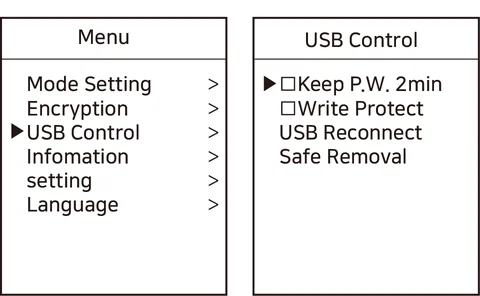
Menu with the cursor on USB Control (USB control). Right: menu USB Control with the entries Keep P.W. 2min (keep password for 2 minutes), Write Protect (write protection), USB Reconnect (reconnect USB), and Safe Removal (safe removal).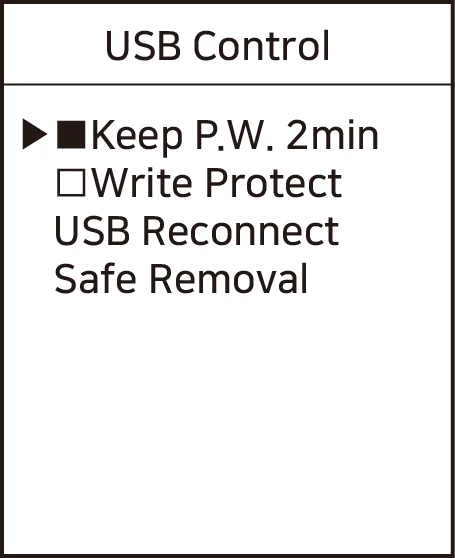
USB Control. The box in front of Keep P.W. 2min is filled: the function is switched on.How to tell it worked
After a restart within 2 minutes, the IODD does not ask for the password.
Limits
Caution
If the IODD is without power (unplugged) for more than 2 minutes, the temporary unlocked state expires. You then have to enter your password again.
If the device is recognized too slowly
If the device is not recognized quickly enough during a restart for the function to take effect, check how your PC initializes USB devices in the BIOS. As a guide, the manufacturer names the settings “Fast Boot” or “USB Initialization”, which should be set to “Full”.
Not solved? Tell us your model and the message on the display. Go to contact form
Translation of the official IODD guide, checked against the original on 23 November 2026.
If they differ, the original English page applies: Keep 2min.PW (new window)