
S.M.A.R.T. and device information
A healthy internal drive and a current firmware are important for the integrity of your data. The IODD shows both directly on its display.
Note
Menu names are given here as the device shows them in English. From firmware 0.8.1.2 onwards, the device can also display German and French; the names then differ.
S.M.A.R.T.: state of the internal drive
S.M.A.R.T. (Self-Monitoring, Analysis, and Reporting Technology) lets you check the diagnostic state of your internal HDD or SSD.
Caution
Stable power supply: If the USB voltage is too low or unstable, the S.M.A.R.T. information may be shown incorrectly or may not load. Always make sure that the connection is stable. For details, see the section on checking the voltage in Initializing the drive.
Press the Menu key (⚙) and select Infomation (information; spelled this way on the device, written “Information” in the manufacturer's text), then S.M.A.R.T.
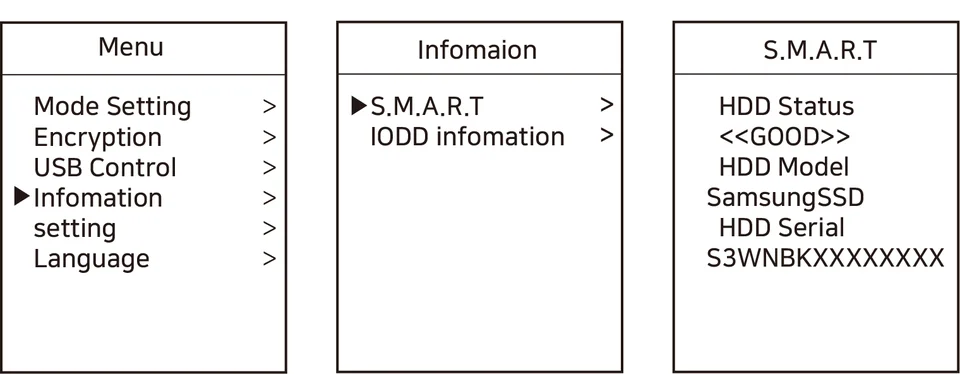
Menu with the cursor on Infomation. Center: menu with the entries S.M.A.R.T and IODD infomation (device information). Right: S.M.A.R.T display with HDD Status (state of the drive) <<GOOD>>, HDD Model (model of the drive), and HDD Serial (serial number of the drive).The display shows:
-
HDD Status(the manufacturer's text calls it “HDD Health”):-
<<GOOD>>(in the manufacturer's text<< Good >>): The drive is healthy and working normally. -
<< Warning >>: Possible problems were detected. Back up your data and consider replacing the drive. -
<< Bad >>: A critical failure is imminent. Replace the drive immediately.
-
-
HDD Model: the manufacturer's model name of the drive. -
HDD Serial: the unique serial number of the drive.
Device information
Here you find the details of your IODD, including the installed firmware version.
Press the Menu key (⚙) and select Infomation, then IODD infomation (device information; the manufacturer's text calls this entry “Product Info”).
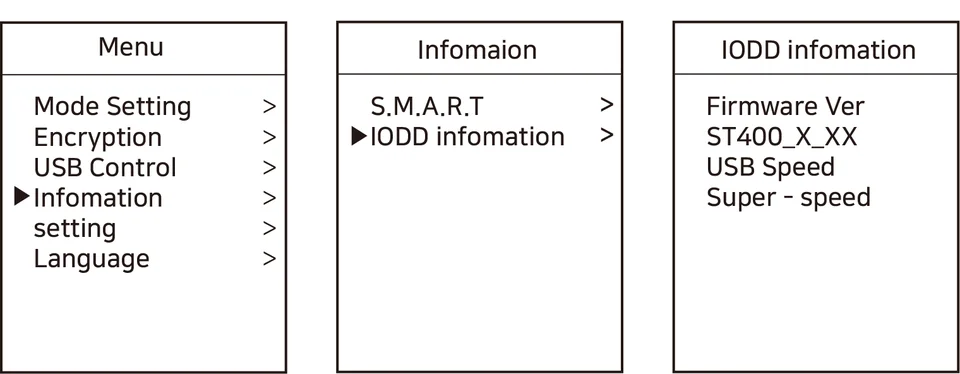
Menu with the cursor on Infomation. Center: menu with the cursor on IODD infomation. Right: display IODD infomation with Firmware Ver (firmware version, here the placeholder ST400_X_XX) and USB Speed (USB speed, here Super - speed).The display shows:
-
Firmware Ver: the firmware version currently installed on the IODD. How to update it is described in Updating the firmware. -
USB Speed: the speed of the current connection (Full Speed, Hi-Speed, or Super Speed). - “USB Lowest Volt”: the lowest voltage measured since the device was connected. This is the most important indicator of a stable power supply.
- “Current Voltage”: the bus voltage currently supplied, in real time.
Detailed check on the computer (Linux/macOS)
If you need a more detailed diagnostic log while the IODD is connected to a computer, you can use commands in the terminal:
# On macOS: show the list of disks with basic information
diskutil list

# On Linux: detailed report with smartctl (requires smartmontools)
sudo smartctl -a /dev/sdXNot solved? Tell us your model and the message on the display. Go to contact form
Translation of the official IODD guide, checked against the original on 23 November 2026.
If they differ, the original English page applies: S.M.A.R.T / Information (new window)