
Display and status bar
On this page (4)
The display of the IODD shows the current state of the device, information on the mounted virtual drives, the state of the write protection, the state of the AES256 encryption and the speed of the USB connection. Use this page to identify each icon.
Note
Menu names are given here as the device shows them in English. From firmware 0.8.1.2 onwards, the device can also display German and French; the names then differ.
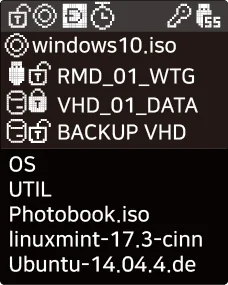
Status bar
The status bar at the top of the display shows the current operating state of the device.





Note
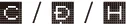
The red lock stands for write protection, not for encryption. Active encryption is shown by the key icon. The ST300 has no encryption.
Is an ISO file mounted?
The ISO icon in the status bar tells you whether an ISO file is currently mounted. This is the sign that mounting has worked. How to mount an ISO file is described in Mounting an ISO file and booting from it.
Virtual drives
This area shows information on the virtual drives that are currently mounted.
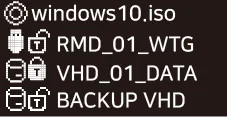



List of files and drives

The list shows the folders and the supported files in the folder that is currently selected.
To use a different partition:
- Eject all active virtual drives.
- Hold key 4 for 3 seconds.
- Select the desired partition in the menu
Partition Selection.
Help on the device
On most screens and items you can call up help that matches the context at any time: press key 0.
Not solved? Tell us your model and the message on the display. Go to contact form
Translation of the official IODD guide, checked against the original on 23 November 2026.
If they differ, the original English page applies: Display/Status Bar (new window)