
Mode settings (Mode Setting)
Mode Setting (mode settings) controls how the PC recognizes your IODD: as a physical drive, as a virtual optical drive for ISO files, and as virtual drives for VHD, IMA, and RMD files. On this page you enable or disable the device types, change their order, and set each one to fixed or removable and to write-protected or writable.
Note
Menu names are given here as the device shows them in English. From firmware 0.8.1.2 onwards, the device can also display German and French; the names then differ.
What you need
- An IODD whose internal drive is initialized and prepared, see Preparing the drive for virtual drives.
Opening Mode Setting
- Press the Menu key (⚙).
- Select
Mode Setting.
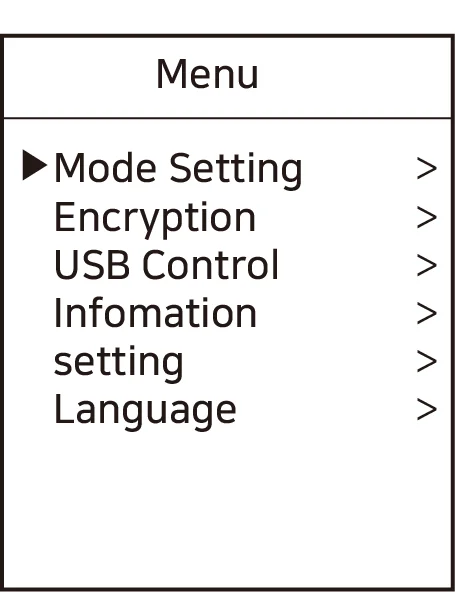
Menu with the entries Mode Setting (mode settings), Encryption, USB Control (USB control), Infomation (information, spelled this way on the device), setting (settings), and Language. The cursor is on Mode Setting.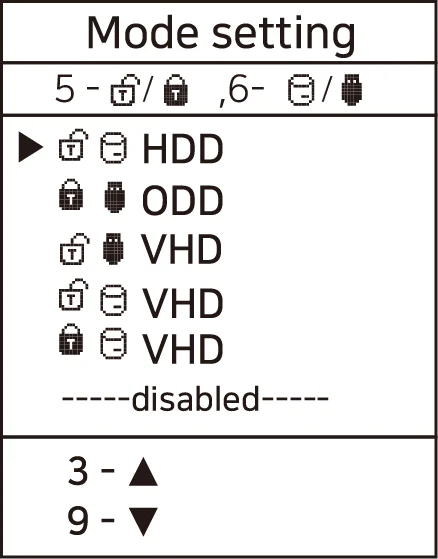
Mode setting. The list shows HDD, ODD, and three VHD entries, each with a padlock icon (write protection off or on) and a drive icon (fixed or removable). Below them is the line -----disabled----- (disabled). The header line names keys 5 and 6, the footer keys 3 (up) and 9 (down).Items
| Item | Description |
|---|---|
HDD |
The internal physical drive of the device. |
ODD |
Virtual optical drive (CD, DVD, Blu-ray) for mounting ISO files. The ODD is always write-protected; it cannot be switched manually. |
VHD |
Virtual drive for mounting VHD, IMA, and RMD files. It can act as a removable disk, a fixed disk, or a USB memory stick. |
You can enable or disable up to 5 device slots independently of each other.
Keys in Mode Setting
| Key | Function | Description |
|---|---|---|
| 2 / 8 | Move cursor | Moves the cursor (▶) up and down to select a drive. |
| 3 / 9 | Change order | Moves the selected item up and down in the order of priority. |
| 5 | Write protection | Switches write protection on or off for the selected drive. The icon shows the current state. |
| 6 | Drive type | Switches the selected drive between fixed disk and removable disk. The icon shows the current state. |
Caution
Disabling items: Items below the line -----disabled----- are switched off. The manufacturer's text writes this line as “[----------Disable-----]”. Use key 3 or 9 to move the items you do not need below this line.
Example
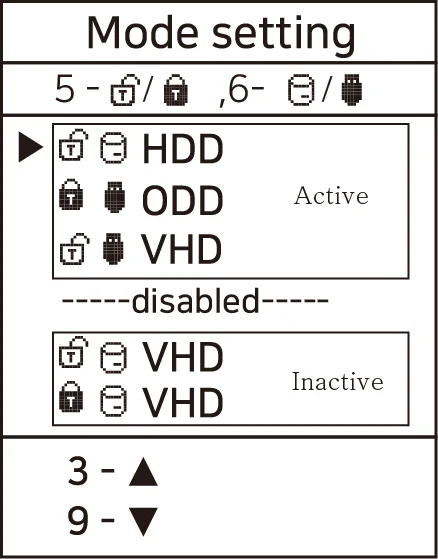
Mode setting. Above the line -----disabled----- are HDD, ODD, and one VHD, labeled “Active”. Below the line are two VHD entries, labeled “Inactive”.With the settings shown in the image, the PC recognizes these devices:
- the physical drive (HDD),
- a virtual optical drive (ODD),
- a removable, writable USB drive.
Saving the settings
When you have finished, press the Menu key (⚙) to save.
How to tell it worked
The IODD reconnects automatically, and the new settings apply.
Message No Extra Devices
If you try to mount an ISO or VHD file and the device shows No Extra Devices, no virtual drive (ODD or VHD) is active. At least one virtual drive must be enabled in Mode Setting. All messages are listed in Error messages A to Z.
Next steps
- To mount an ISO file: Mounting an ISO file and booting from it.
- To use a virtual USB drive or virtual hard disk: Creating a VHD file (VHD Tool++).
Not solved? Tell us your model and the message on the display. Go to contact form
Translation of the official IODD guide, checked against the original on 23 November 2026.
If they differ, the original English pages apply: Mode Configuration (new window) IODD Mini Pro (new window) IODD ST300 (new window) IODD ST400 (new window)