
Creating a VHD file (VHD Tool++)
The IODD can mount VHD, RMD, VMDK, and IMA files as bootable virtual USB drives. VHD Tool++ is a program for Windows only. It creates VHD files of fixed size (fixed-size VHD) so that your IODD can work as a virtual drive.
- Only fixed-size VHD and VMDK files are supported. Dynamically expanding VHD files and VHDX files are not compatible.
- Create the VHD file with VHD Tool++ directly on the IODD so that it is unfragmented.
- Up to three VHD drives can be mounted at the same time.
What you need
- A PC with Windows.
- The program VHD Tool++, see the download note below.
- An IODD with an NTFS or exFAT partition and enough contiguous free space for the file.
Download from the manufacturer
VHD Tool++ is available in the manufacturer's download directory (in English, opens in a new window): dir.iodd.kr
– Which folder to choose is described under VHD Tool++. To start the program in English, run the file VHD_Tool++(en).bat instead of the EXE file.
Link checked on 23 November 2026
Note
Supported file systems: VHD Tool++ can create VHD files on NTFS and exFAT partitions. The manufacturer recommends exFAT. VHD Tool++ relies on Microsoft's older program vhdtool.exe; with some Windows versions and region settings, errors in the time or timestamp format can occur on an NTFS partition.
Creating the VHD file
Caution
UEFI installation: If you create a VHD for UEFI booting and installation, the VHD file must be larger than the original ISO file.
- Start VHD Tool++.
- Select the tab
Createin the top menu. - In the field
FileName, set the save path (an NTFS or exFAT partition on the IODD) and enter the file name you want. The manufacturer's text calls this field “[File name]”. - Enter the required size of the VHD file in the field
Size. The size must be less than or equal to the value underLargest linear space(the largest contiguous free space on the drive). The manufacturer's text calls this value “[Biggest linear Space]”. - Click the button
Createat the bottom. The VHD file is created in the path you set.

Create, Convert, Extend, Defragment, Upload, Write To HDD, and About. The mouse pointer is on Create.
Create with the heading “Create Continuous Fixed VHD” (create a contiguous fixed-size VHD). The field FileName (file name) contains the example ioddST400WIN.vhd.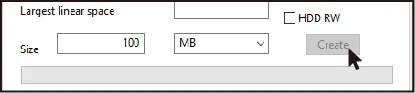
Create with the fields Largest linear space (largest contiguous space) and Size (here 100 MB), the checkbox HDD RW, and the button Create.Note
Creating a VHD needs contiguous free space. If creation fails because there is not enough contiguous space, defragment the drive and try again.
Mounting the VHD and saving the state
Caution
The VHD cannot be mounted if the virtual drive is disabled in the mode settings. Check your settings under Mode settings (Mode Setting).
Caution
If you do not save the state with key 9, the VHD is ejected as soon as the device loses power or the PC restarts.
- Reconnect the IODD to your PC (unplug the cable and plug it in again).
- Find the new VHD file on the display of the IODD and select it.
- Press key 6 or the Enter key (⏎) to mount the file.
- Before you restart the PC, press key 9 to save the current state. The manufacturer's text adds “or [Enter] for certain models”.
How to tell it worked
After you have saved the state with key 9, the VHD stays mounted after a restart or after you reconnect the device.
You can then install an operating system on the mounted virtual drive with an imaging program, see Converting an ISO into a UEFI-bootable drive and Windows To Go and Boot Camp (Intel Mac).
More functions of VHD Tool++
VHD Tool++ can do more than create VHD files. The other tabs help you keep image files compatible with the IODD, for example when you need to convert a raw image, enlarge an existing VHD, remove fragmentation, or copy an image file to the IODD. The program itself is described under VHD Tool++.
Warning
Write To HDD permanently deletes all data on the internal drive. Use this function only if you are an experienced user working with raw disk images.
-
Convert: converts a general disk dump image into a fixed-size VHD file. -
Extend: enlarges an existing fixed-size VHD file. -
Defragment: defragments a single file on the IODD so that it is contiguous (0 fragments). -
Upload: copies a file from your PC to the IODD and keeps it unfragmented during the transfer. -
Write To HDD(for experts only): copies an image file sector by sector to the internal drive. This function supports only the NTFS file system; according to a second passage in the manufacturer's guide, NTFS and exFAT.
Not solved? Tell us your model and the message on the display. Go to contact form
Translation of the official IODD guide, checked against the original on 23 November 2026.
If they differ, the original English pages apply: Virtual Drive (VHD) (new window) Create VHD file with VHD Tools (new window) Advanced VHD Tool++ Functions (new window) IODD Mini Pro (new window) IODD ST300 (new window) IODD ST400 (new window)