
IODD Admin Manager
The IODD Admin Manager is a Windows program for administrators. It lets you manage encryption settings and user rights and lock or unlock the device directly from the PC. It runs on Windows only.
Caution
Supported models only. The Admin Manager works with the ST400, LK100 and MINI PRO. It does not support the 2531, the 2541, the IODD MINI (older model) or the ST300. The ST300 has no encryption.
Download from the manufacturer
IODD Admin Manager: download from the manufacturer (in English, opens in a new window). The manufacturer's guide names only the start page of its download directory. Choose the folder of the Admin Manager there. If the page does not load, try again later or contact us.
Link checked on 23 November 2026
Note
Forgotten password. The manufacturer's guide for resetting a forgotten password uses a tab Emergency with the function Erase All Data (erases all data). The screenshots on this page do not show that tab. It is described in Resetting the password: MINI PRO and ST400.
Security and mutual authentication
When a device is connected, the Admin Manager performs mutual authentication based on challenge-response. For each session it exchanges a random number that cannot be reused (the challenge). It then checks the response, which is calculated with the genuine key stored securely in the IODD hardware. In this way the device and the program each confirm that the other is genuine.
The procedure is designed to prevent replay attacks. Counterfeit or modified devices that fail authentication cannot establish management communication. This helps to verify that the hardware is genuine and to keep the attack surface small.
Layout of the program
The program window is divided into several areas.

Main Menu Area (main menu), Admin panel Area (admin area), User management area (user management), Current status area (current status) and Log Area (log). The window title in the screenshot reads IODD Admin Manager R-0.9.0.1; other versions may look different.Admin area
In this area, the administrator controls the basic security state of the connected IODD.

Admin with the fields Device (device), Serial (serial number), 2nd Password and Admin Password, and the buttons Scan (search), Unlock, Lock and Set. Next to it, the tab Passwords Configuration.- Field
Admin Password: Every administrative action requires this password. Without it, changes are not saved to the IODD. - Field
2nd Password: Used for the first setup of encryption and when the drive is moved to new hardware. - Button
Set: Writes the 2nd Password you entered (up to 38 digits) to the device. - Button
Unlock: Unlocks the connected IODD from the PC. - Button
Lock: Locks the device with the password by hand. - Tab
Passwords Configuration(in the manufacturer's text “Password Configuration”): Saves the current user settings as a file.
Note
Master password. Saving or loading configuration files requires a master password. It is independent of the admin password and serves only to protect the configuration files.
User management
The administrator can set up as many as four user profiles, each with rights of its own.
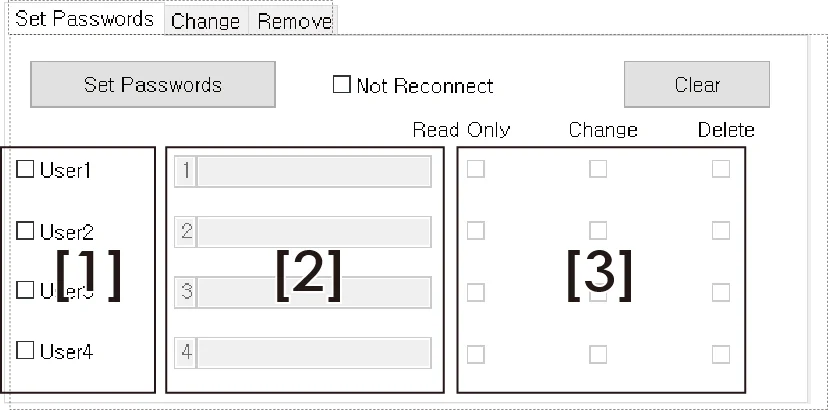
Set Passwords, Change and Remove. Below them, the button Set Passwords, the check box Not Reconnect and the button Clear. Marked area [1]: User1 to User4; [2]: the password fields; [3]: the rights Read Only, Change and Delete.- Selecting the user [1]: Tick the box of the user (1 to 4) you want to manage.
-
Password [2] and rights [3]: Set the user's password and tick the rights you want.
-
Read Only(read-only): The user cannot write data. -
Change(in the manufacturer's text “User Change”): The user can change their own password. -
Delete(in the manufacturer's text “User Delete”): The user can remove their own access data.
-
-
Buttons:
-
Set Passwords(in the manufacturer's text “Set Password”): Applies the settings to the IODD. -
Not Reconnect(in the manufacturer's text “Do not reconnect”): If ticked, the settings take effect immediately, and the device does not have to be reconnected by hand. -
Clear(in the manufacturer's text “Empty”): Empties all input fields of the user area.
-
Caution
Structure of the user passwords. A user password must begin with the user's identification digit (1 to 4). The total length can be up to 38 digits: 1 identification digit and a password of 37 digits.
Status, log and settings
Current status
This area shows in real time whether the encryption is locked and which user rights are active.
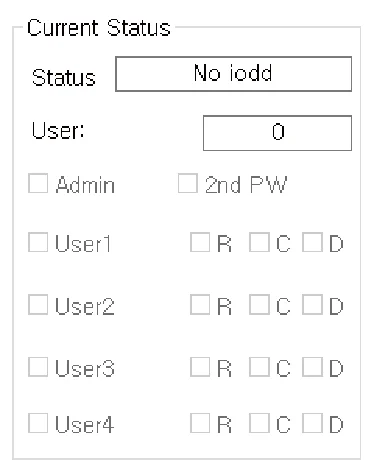
Current Status. The field Status shows No iodd (no IODD connected). Below it are Admin, 2nd PW and User1 to User4, each with the boxes R, C and D.Log
The log lists all actions and their progress in the order in which they happened. The button Clear empties the view.

Clear (empty the view).Menu and settings
Under Settings → Preferences, you can close the program or change the language of the interface.
Supported languages: Korean, English, German, French, Chinese, Japanese, Russian. This page uses the English labels shown in the screenshots.
When you need the program
All encryption functions can be carried out directly on the IODD itself. You need the Admin Manager only for managing password configuration files (.cfg), or if you prefer to manage several settings together from the PC.
For the settings on the device, see Encryption.
Not solved? Tell us your model and the message on the display. Go to contact form
Translation of the official IODD guide, checked against the original on 23 November 2026.
If they differ, the original English page applies: Admin Manager Application (new window)