
Setting the 2nd Password
On this page (3)
The 2nd Password is a security layer that guards against brute-force attacks. The device requires it when encryption is initialized on a drive and when an encrypted drive is moved to a different IODD ST400, LK100 or MINI PRO.
The 2nd Password can be up to 38 digits long. Only the administrator manages it.
Note
The ST300 has no encryption.
Note
Menu names are given here as the device shows them in English. From firmware 0.8.1.2 onwards, the device can also display German and French; the names then differ.
Why the 2nd Password matters
- Protection against brute-force attacks. A second check at hardware level prevents unauthorized access through mass copying of the drive or through trying out passwords.
- Changing the enclosure. If your IODD enclosure is physically damaged, the 2nd Password lets you move the encrypted drive safely to a new IODD ST400, LK100 or MINI PRO.
What you should know
- Where it is stored. The 2nd Password is stored in encrypted form in the hardware of the ST400, LK100 or MINI PRO. You normally set it only once, during the first setup of encryption, unless you decide to change it later.
- Moving a drive. When you connect an encrypted drive to a new IODD, you must enter the existing 2nd Password there. Without it, the drive stays inaccessible. See Moving an encrypted drive to another device.
- Switching encryption on. Hardware encryption cannot be switched on or used until a 2nd Password has been set.
Setting the 2nd Password
What you need
- The IODD with the drive installed.
- A 2nd Password of up to 38 digits.
- A safe place where you keep the 2nd Password.
Warning
If the 2nd Password is lost, it cannot be retrieved, reset or recovered by any means. Keep it in a safe place.
-
Press the Menu key (⚙) and open
Encryption(encryption) →Admin(administrator).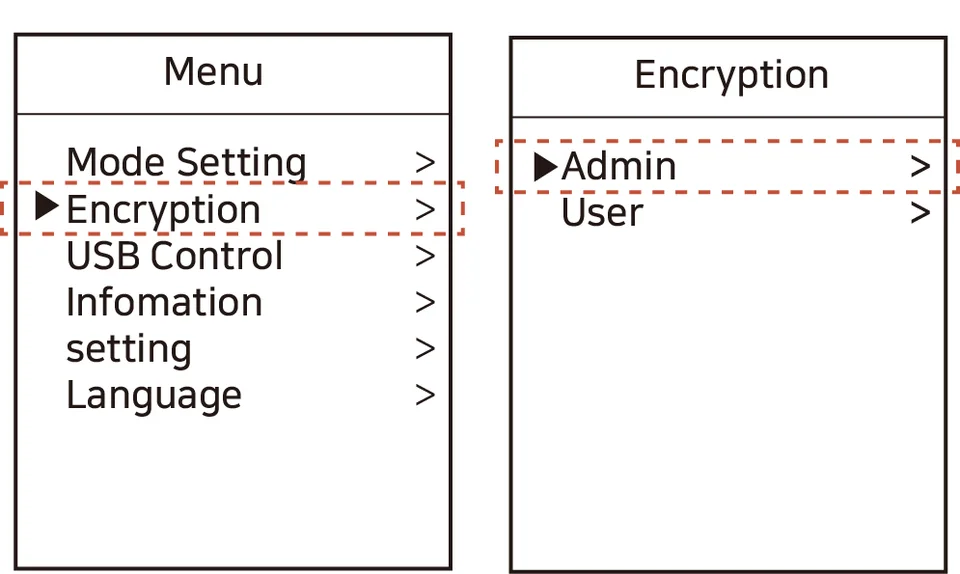
Left, the main menu Menuwith the entriesMode Setting,Encryption,USB Control,Infomation(information),setting(settings) andLanguage. Right, the menuEncryptionwithAdminandUser. Select
Set 2nd P.W.(set the 2nd Password).-
Enter the 2nd Password you want, then enter it a second time to confirm.
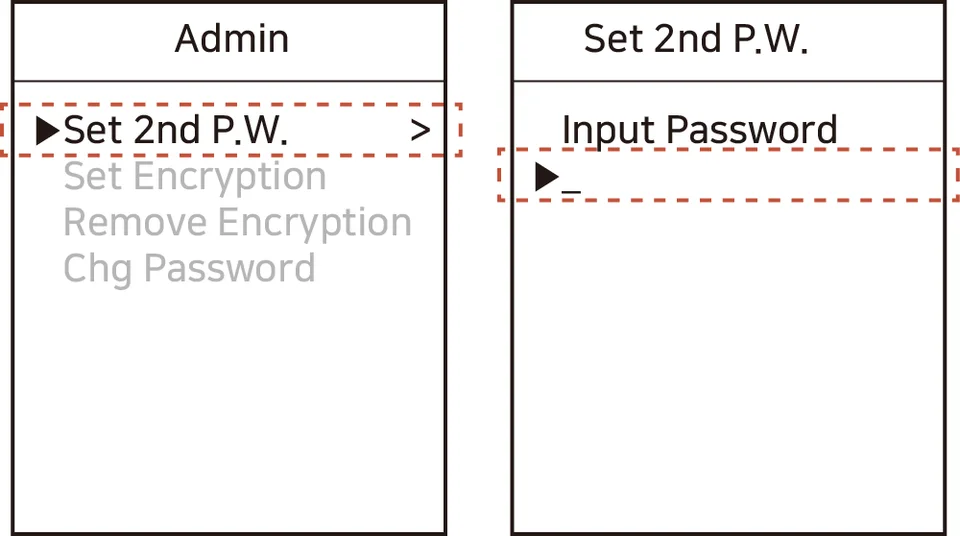
Left, the menu AdminwithSet 2nd P.W.,Set Encryption(switch encryption on),Remove Encryption(remove encryption) andChg Password(change password). Right, the screenSet 2nd P.W.with the promptInput Password(enter password).
How to tell it worked
The manufacturer's guide does not describe a separate confirmation message. Once the 2nd Password is set, continue with Setting the admin password.
Not solved? Tell us your model and the message on the display. Go to contact form
Translation of the official IODD guide, checked against the original on 23 November 2026.
If they differ, the original English page applies: 2nd Password (new window)