
Setting the admin password
When several people share an IODD, administrator mode lets you manage each user's password and their rights on the drive. The administrator can reset user passwords and is the only one who can remove encryption from the whole device.
Note
The ST300 has no encryption.
Note
Menu names are given here as the device shows them in English. From firmware 0.8.1.2 onwards, the device can also display German and French; the names then differ.
Setting the admin password
What you need
- The 2nd Password is already set. See Setting the 2nd Password.
- A backup of all data on the drive.
- The admin password you want to use.
Warning
Warning: This erases all data on the drive. Back up your data first.
-
Press the Menu key (⚙) and open
Encryption(encryption) →Admin(administrator).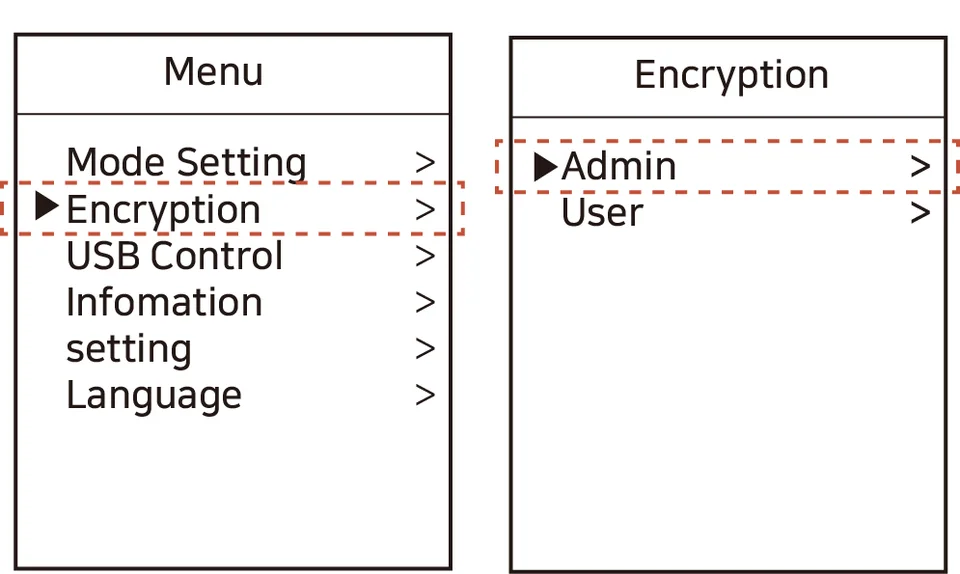
Left, the main menu MenuwithEncryptionselected. Right, the menuEncryptionwithAdminandUser. -
Select
Set Encryption(switch encryption on; other places in the manufacturer's guide call this item “Set Password”) and read the prompt on the display. Continue only if your data is backed up.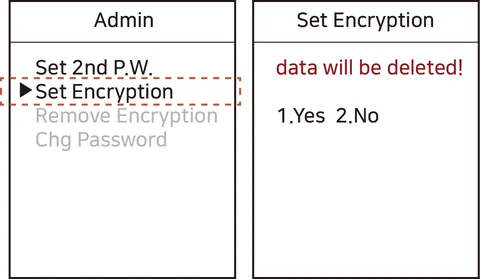
Left, the menu AdminwithSet Encryptionselected. Right, the promptdata will be deleted!(the data will be erased) with the choices1.Yes(yes) and2.No(no). -
Enter the admin password you want, then enter it a second time to confirm.
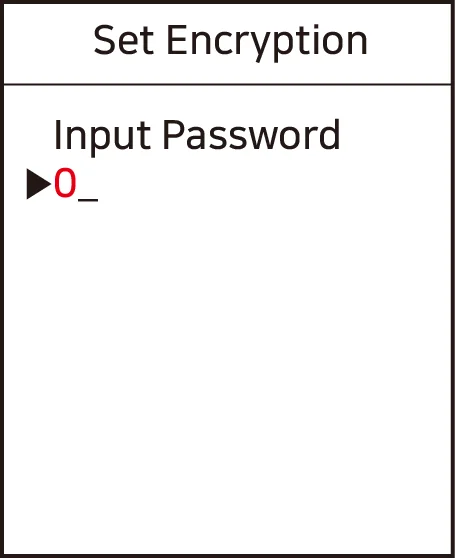
The screen Set Encryptionwith the promptInput Password(enter password). The input line already starts with the digit 0. -
Wait until the process is finished. The drive is then initialized. The display may show
No Supported Partition(no supported partition; the manufacturer's text calls it “No appropriate partition”), because the drive is now unformatted.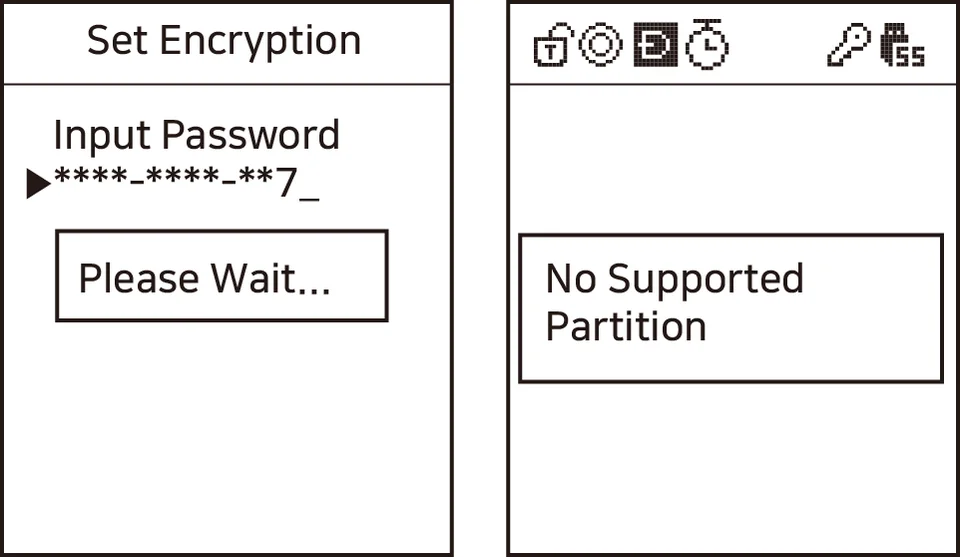
Left, Please Wait...(please wait) while the password is being set. Right, the messageNo Supported Partition: initialization was successful, and the drive must be formatted before use. -
Reconnect the IODD (unplug the cable and plug it in again). The device now asks for the password. To log in as administrator, enter the prefix 0 followed by your password.
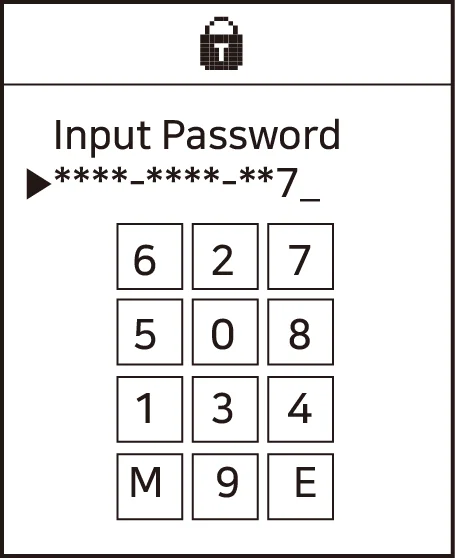
The prompt Input Passwordafter reconnecting, with the random keypad. Log in as administrator with 0 followed by the admin password.
How to tell it worked
After reconnecting, the device asks for a password and accepts 0 followed by your admin password.
How the login code is built
The login uses a prefix to tell the administrator and the users apart. The code is the identification digit followed by the password that was set.
- 0: identification digit of the administrator
- 1 to 4: identification digits of the users
Example: If you set the admin password to 55447788, the complete login code is 055447788.
Caution
Password not accepted. If the device reports a wrong password (Not Match...; the manufacturer's text says “Wrong Password”) although the digits are correct, check whether you left out the prefix 0. The device does not add the administrator's digit by itself at the login prompt.
After setting the password
Note
Are you setting up the device right now? Continue with: Initializing the drive.
After setting the password, you may need to format the drive or set up virtual drives.
Not solved? Tell us your model and the message on the display. Go to contact form
Translation of the official IODD guide, checked against the original on 23 November 2026.
If they differ, the original English page applies: Set admin Password (new window)